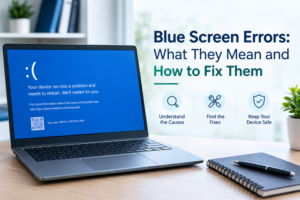
A blue screen error can be alarming, especially when your computer suddenly stops working and displays an error message before restarting. Commonly associated with Windows PCs, a blue screen indicates that the operating system has encountered a serious problem that it cannot safely resolve.
These errors can be caused by faulty hardware, incompatible drivers, corrupted system files, overheating, software conflicts, malware, or problems with storage devices. While a single blue screen may be temporary, repeated crashes should be investigated to prevent further system problems or potential data loss.
This guide explains what blue screen errors mean, what commonly causes them, and what you can do to troubleshoot the problem.
What Is a Blue Screen Error?
A blue screen error, often called a Blue Screen of Death (BSOD), occurs when Windows encounters a critical system error. To protect the computer from additional damage, Windows stops normal operation and may automatically restart.
The screen usually displays a stop code that can provide useful information about the underlying problem. Examples include:
- CRITICAL_PROCESS_DIED
- SYSTEM_SERVICE_EXCEPTION
- MEMORY_MANAGEMENT
- PAGE_FAULT_IN_NONPAGED_AREA
- IRQL_NOT_LESS_OR_EQUAL
- DRIVER_IRQL_NOT_LESS_OR_EQUAL
The specific stop code can help identify whether the issue is related to memory, drivers, system files, hardware, or another component.
What Causes a Blue Screen?
There isn’t one single cause of a BSOD. Several hardware and software problems can trigger these crashes.
1. Faulty or Incompatible Drivers
Device drivers allow Windows to communicate with hardware such as graphics cards, network adapters, printers, and storage devices.
A corrupted, outdated, or incompatible driver can cause Windows to crash. This is particularly common after installing a new device or updating an existing driver.
If the blue screen started shortly after a driver update, reverting to the previous driver version may help resolve the problem.
2. RAM Problems
Defective or improperly installed RAM can cause memory-related errors and system instability.
A computer may experience blue screens, application crashes, freezes, or unexpected restarts when its memory is failing.
Running Windows Memory Diagnostic or another reputable memory-testing utility can help determine whether RAM is contributing to the problem.
3. Overheating
Excessive heat can affect the stability of your computer’s processor, graphics card, and other components.
Blocked ventilation, dust buildup, failing fans, or inadequate cooling can cause temperatures to rise. If blue screens happen while gaming, running demanding applications, or performing other intensive tasks, overheating may be worth investigating.
Keeping vents clear and ensuring that cooling components are functioning properly can help maintain stable operating temperatures.
4. Corrupted Windows System Files
Windows relies on many system files to operate correctly. If important files become corrupted because of an interrupted update, software problem, disk issue, or other system failure, Windows may become unstable.
Windows includes built-in tools such as System File Checker (SFC) and Deployment Image Servicing and Management (DISM) that can check and repair certain system-file problems.
5. Failing Storage Drives
A damaged or failing SSD or hard drive can cause Windows to become unstable. Problems may appear as blue screens, slow performance, missing files, application crashes, or difficulty starting the computer.
If you notice multiple symptoms at the same time, avoid repeatedly restarting the computer before checking the health of the storage device. Continuing to use a failing drive can increase the risk of data loss.
If important files are inaccessible, professional data recovery and backup services may be appropriate.
6. Malware or Other Security Threats
Some forms of malware can interfere with system processes, modify important files, or consume system resources. While malware isn’t responsible for every blue screen, an infected computer can experience instability and other unusual behavior.
Keeping Windows, applications, and security software updated can reduce exposure to known threats.
For additional protection, Reliable Telecom provides virus protection and prevention services designed to help identify and address malware and other security threats.
7. Recently Installed Hardware
Adding new hardware can occasionally introduce compatibility problems.
If blue screens begin after installing RAM, a graphics card, storage device, network adapter, or another component, check that the hardware is properly installed and that the correct drivers are being used.
How to Troubleshoot a Blue Screen Error
If your computer displays a blue screen, don’t immediately assume that the hardware needs to be replaced. Start with a few basic troubleshooting steps.
Restart the Computer
If the blue screen occurs only once, restart the computer and monitor it for additional problems.
A temporary software issue or failed process can sometimes cause an isolated crash. However, repeated blue screens indicate that further troubleshooting is necessary.
Record the Stop Code
Take note of the error message or stop code shown on the blue screen.
This information can help identify the area responsible for the failure. If the computer restarts too quickly to read the message, Windows may store information about the crash that can be reviewed later.
Install Windows Updates
Check Windows Update for available operating-system updates.
Microsoft regularly releases updates that address bugs, security vulnerabilities, compatibility problems, and system stability issues.
Check Device Drivers
Review recently updated or installed drivers, particularly those associated with your graphics card, storage controller, network adapter, and other major components.
If the crashes began after a driver update, consider rolling back the driver or installing a compatible version from the hardware manufacturer’s website.
Test the RAM
Use Windows Memory Diagnostic or another reputable memory-testing tool to check the computer’s RAM.
If memory testing reports errors, the RAM may need to be reseated, tested individually, or replaced.
Check System Files
Windows provides built-in tools that can scan for damaged system files.
Running SFC and DISM can help repair certain types of Windows corruption. However, if the system continues to crash after these checks, the underlying issue may involve hardware, drivers, storage, or another component.
Check Storage Health
If you are experiencing blue screens along with slow performance, missing files, unusual noises from a traditional hard drive, or repeated file corruption, investigate the condition of the storage device.
Back up important files as soon as possible if the drive is still accessible.
Remove Recently Added Hardware or Software
Think about what changed immediately before the blue screens started.
A recently installed program, driver, Windows update, or hardware component may be responsible. Temporarily removing or reversing the recent change can help identify the cause.
When Should You Get Professional Computer Repair?
Basic troubleshooting can resolve some blue screen problems, but repeated crashes may indicate a deeper hardware or software issue.
Professional diagnostics can be particularly useful when:
- Blue screens happen repeatedly
- The computer crashes during startup
- Windows cannot boot normally
- The computer freezes or restarts unexpectedly
- You suspect failing RAM or a storage drive
- Important files are at risk
- The problem began after a hardware upgrade
- Multiple stop codes appear
- Driver and Windows updates haven’t solved the issue
- You cannot identify what is causing the crashes
Reliable Telecom provides computer repair and troubleshooting services for hardware and software problems, including diagnostics, Windows PC repairs, hardware troubleshooting, malware removal, storage issues, system optimization, and data recovery.
How to Prevent Future Blue Screen Errors
Although not every system crash can be prevented, good maintenance can reduce the likelihood of recurring problems.
Keep Windows and Drivers Updated
Install reliable Windows and hardware-driver updates regularly. Updates can resolve known compatibility and stability issues.
Maintain Proper Cooling
Keep air vents clear and make sure cooling fans are working correctly. Dust buildup can restrict airflow and contribute to overheating.
Monitor Storage Health
Pay attention to warning signs such as unusually slow performance, corrupted files, frequent crashes, or difficulty accessing data.
Use Reliable Security Software
Keep your computer protected with reputable antivirus and anti-malware tools, and avoid downloading software from untrusted sources.
Back Up Important Files
A hardware failure or severe system problem can sometimes make files inaccessible. Regular backups provide an additional layer of protection.
Reliable Telecom also provides data management and storage solutions that can help businesses protect, organize, and recover important information.
Avoid Unnecessary Hardware Changes
Before installing new components, confirm that the hardware is compatible with your system and that the required drivers are available.
Final Thoughts
A blue screen is more than an inconvenience—it is a warning that Windows encountered a problem serious enough to stop normal operation. The cause could be something relatively simple, such as an outdated driver, or something more serious, such as failing RAM, storage problems, overheating, or corrupted system files.
If the blue screen happens repeatedly, don’t simply keep restarting the computer and hoping the problem disappears. Recording the stop code, checking recent system changes, testing hardware, and reviewing drivers can help narrow down the cause.
When troubleshooting doesn’t resolve the issue, professional computer diagnostics can identify the underlying problem and help prevent recurring crashes. Reliable Telecom provides computer repair, hardware troubleshooting, malware removal, data recovery, and system optimization services to help keep computers running reliably.